

Camera & Security Gadgets
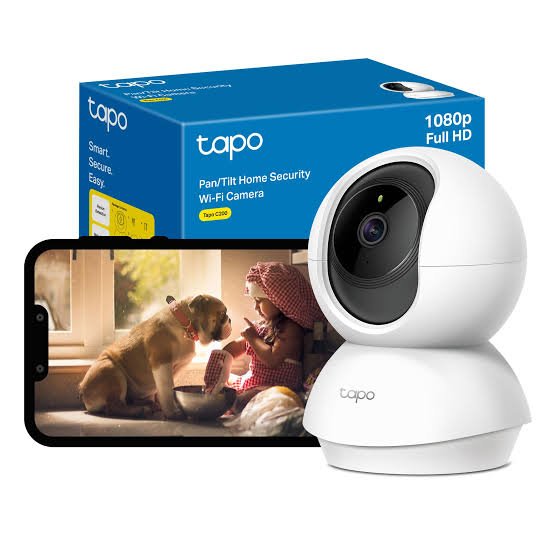
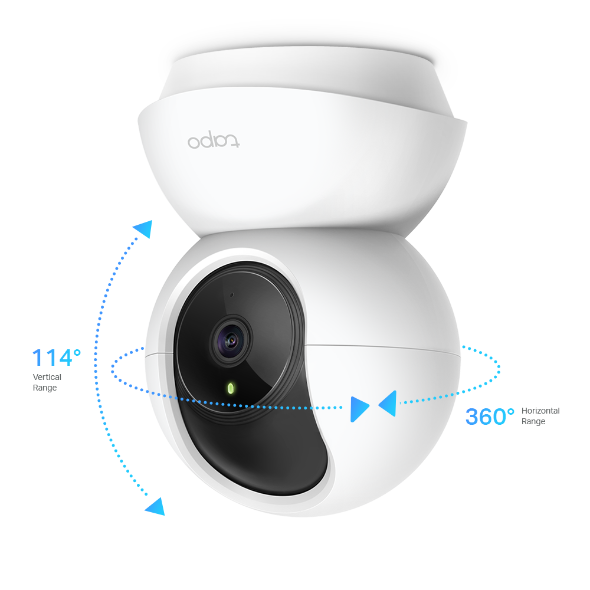
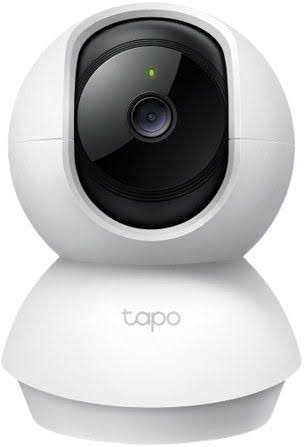
Tapo C200c Pan/Tilt Home Security Wi-Fi Camera 360º Horizontal and 114º Vertical Range
Original price was: ₨6,000.₨5,500Current price is: ₨5,500.
How to Use Tapo C200
-
Download the Tapo App
Download the TP-Link Tapo App on your Android or iPhone and sign in with your TP-Link account. -
Connect the Camera
Plug the Tapo C200 into a power outlet. Wait until the LED indicator flashes red and green, then open the Tapo App and tap “+ Add Device” to set up the camera. -
Connect to Wi-Fi
Follow the instructions in the Tapo App to connect the camera to your 2.4GHz Wi-Fi network. -
View Live Video
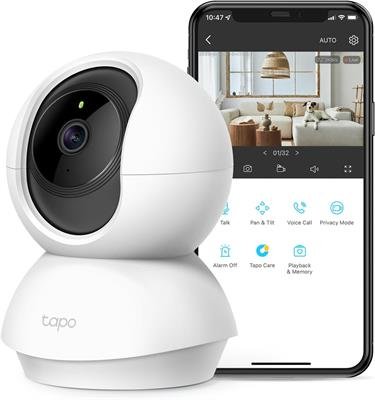
Open the Tapo App, select your C200 camera, and tap Live View to watch your camera remotely. -
Control Camera Movement
Use the controls in the app to move the camera left, right, up, and down for a wider viewing area. -
Two-Way Audio
Use the microphone/talk button in Live View to speak through the camera and communicate with people nearby. -
Motion Detection & Alerts
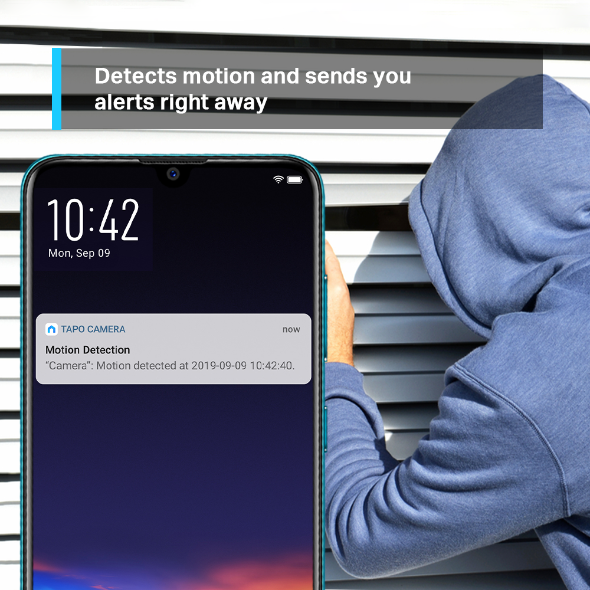
Go to Settings → Detection & Alerts and enable motion detection to receive notifications when movement is detected. -
Recording
Insert a compatible microSD card, then enable recording through Storage & Recording in the Tapo App. You can view saved footage through the Playback option. -
Night Vision
The camera automatically switches to night vision in low-light or dark conditions, allowing you to monitor your area at night. -
Privacy Mode
Enable Privacy Mode from the Tapo App whenever you want to temporarily stop camera monitoring.
Important: Keep the camera connected to a stable Wi-Fi network and ensure the Tapo App and camera firmware are updated for the best performance.
You must be logged in to post a review.

Reviews
There are no reviews yet